Step-by-Step Usage Guide
Master the Bargain App in minutes. Follow this guide to configure your store, create offer rules, and customize the widget.
1. How to Install
Follow these steps to get the app running on your Shopify store.
Install App from Shopify App Store
- Go to the Shopify App Store.
- Search for Bargain - Make an Offer by CC.
-
Open the app listing and click the Install button.
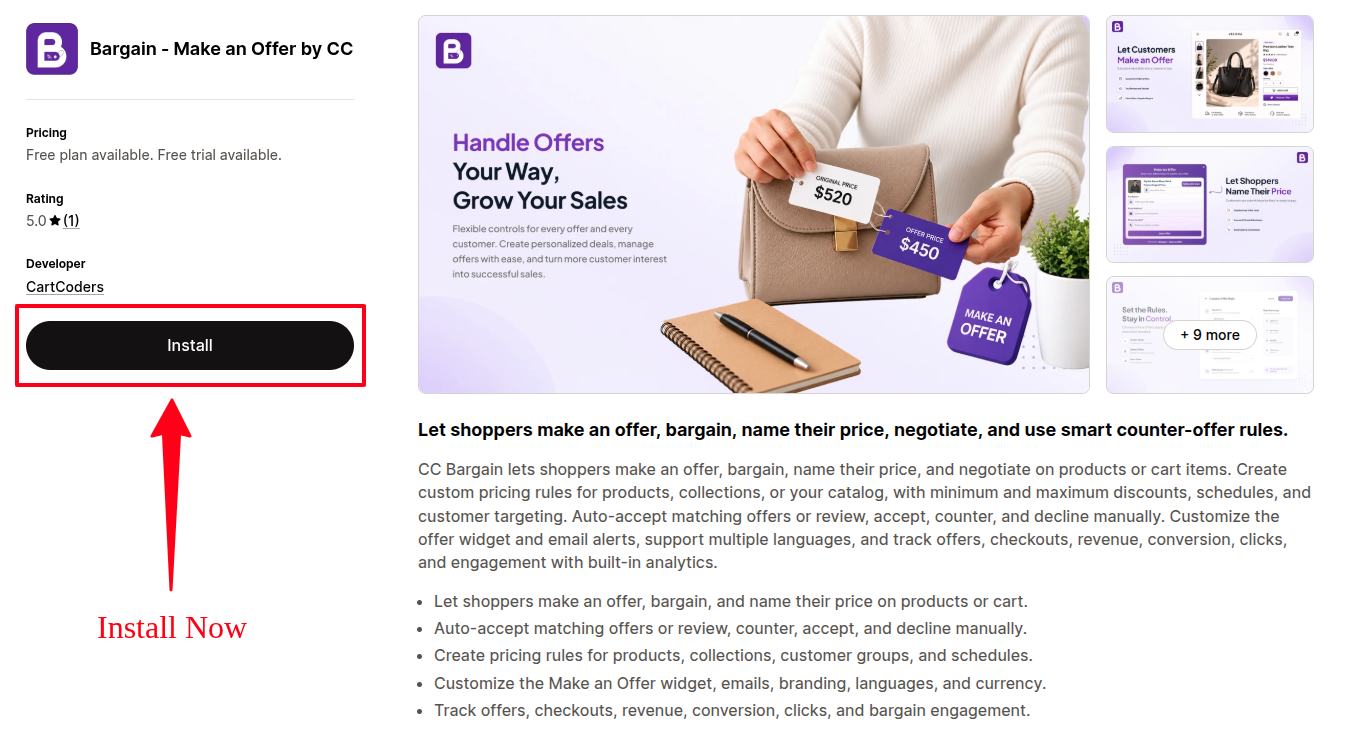
- If you're not already logged in, sign in to your Shopify store.
-
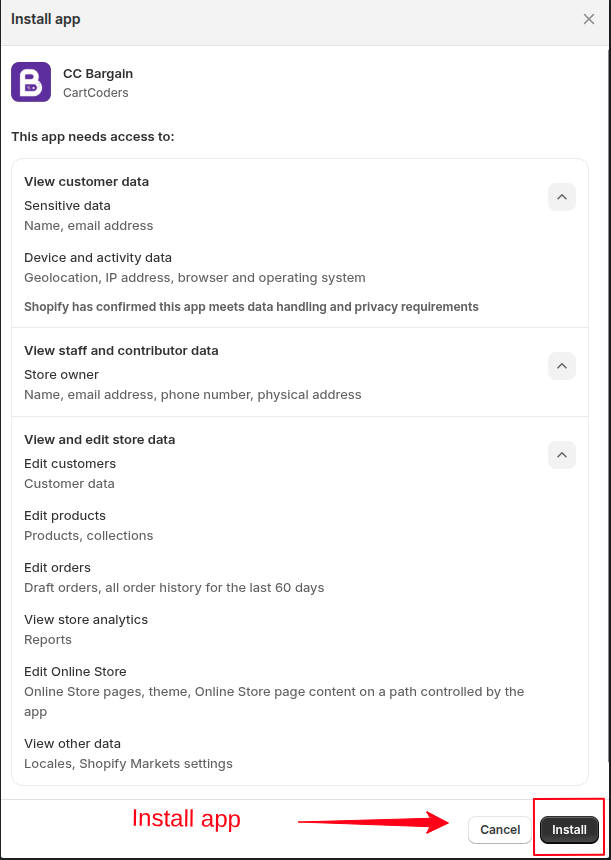
Shopify will display the App Permissions screen. Review the requested permissions and click Install to authorize the app.
- After installation, you will be redirected to the Plan Selection page.
- Choose the plan that best fits your business needs.
- A 14-day free trial is available on all paid plans.
- A Free Plan is also available for merchants who want to get started at no cost.
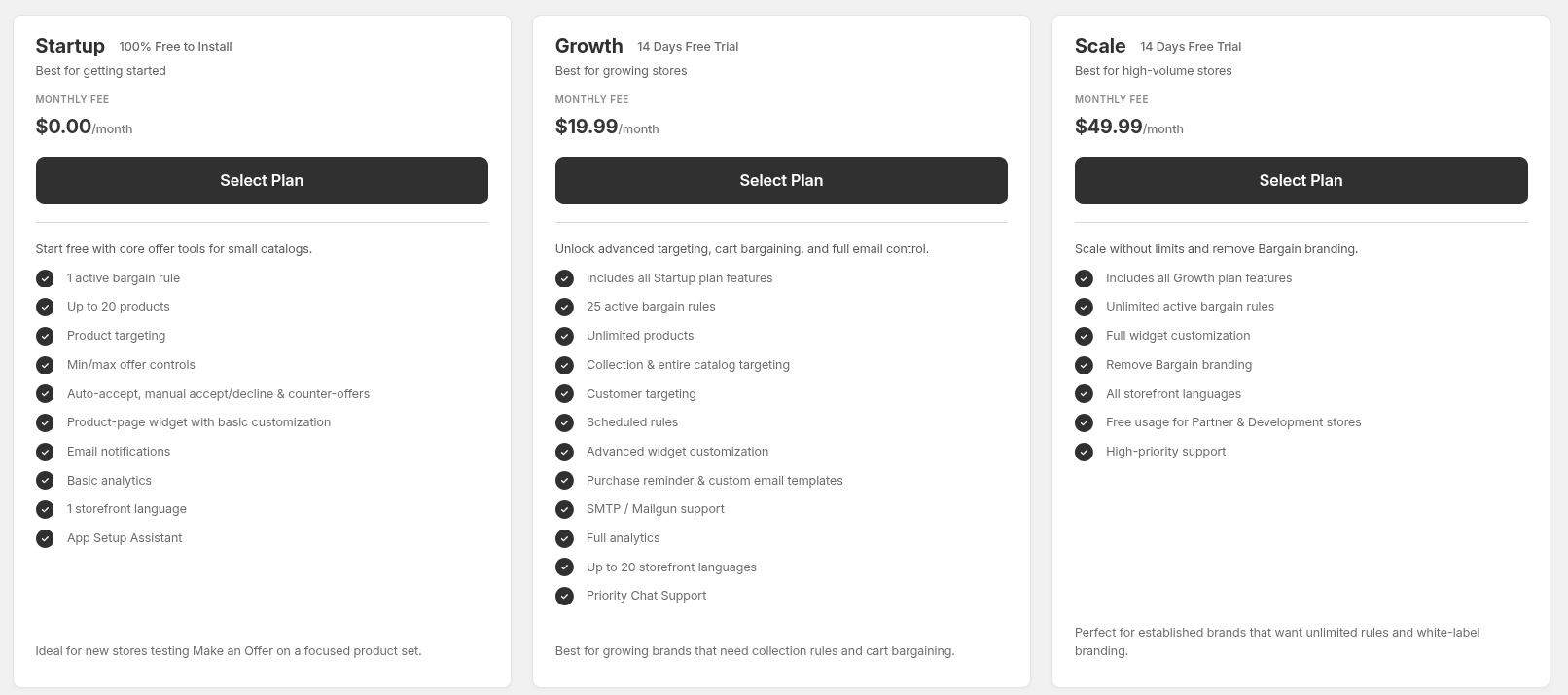
Once your plan is selected, you will be automatically redirected to the Dashboard.
Dashboard Checklist
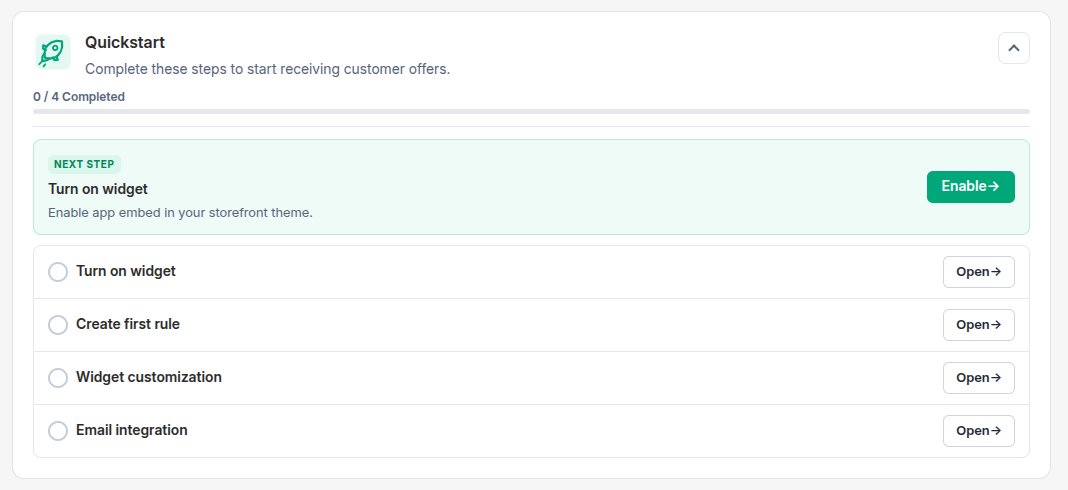
Follow the Setup Checklist on the Dashboard to configure the app step by step, including:
- Theme Integration
- Offer Rules
- Widget Settings
- Email Integration
2. Enable Bargain in your Shopify Theme
Enable the App Embed so the widget displays correctly on your storefront.
Enable the App Embed step
- Log in to your Shopify Admin.
- Go to Online Store -> Themes.
- Find your active theme and click Customize.
- In the Theme Editor, click the App Embeds icon (usually on the left sidebar).
- Locate CC-Bargain.
- Toggle the app ON.
- Click Save.

3. Overview
The Bargain App brings the power of negotiation directly to your storefront.
Why use Bargain App?
By giving customers the ability to make an offer on your products, you capture high-intent buyers who might otherwise abandon their cart due to price constraints.
How it works
Customers submit an offer via the widget on your product page. Our dashboard gives you a complete bird's eye view of all active negotiations, allowing you to accept, reject, or counter-offer seamlessly to drive revenue.
4. Offer Rules
Offer Rules dictate which products are eligible for bargaining and set up boundaries to protect your margins.
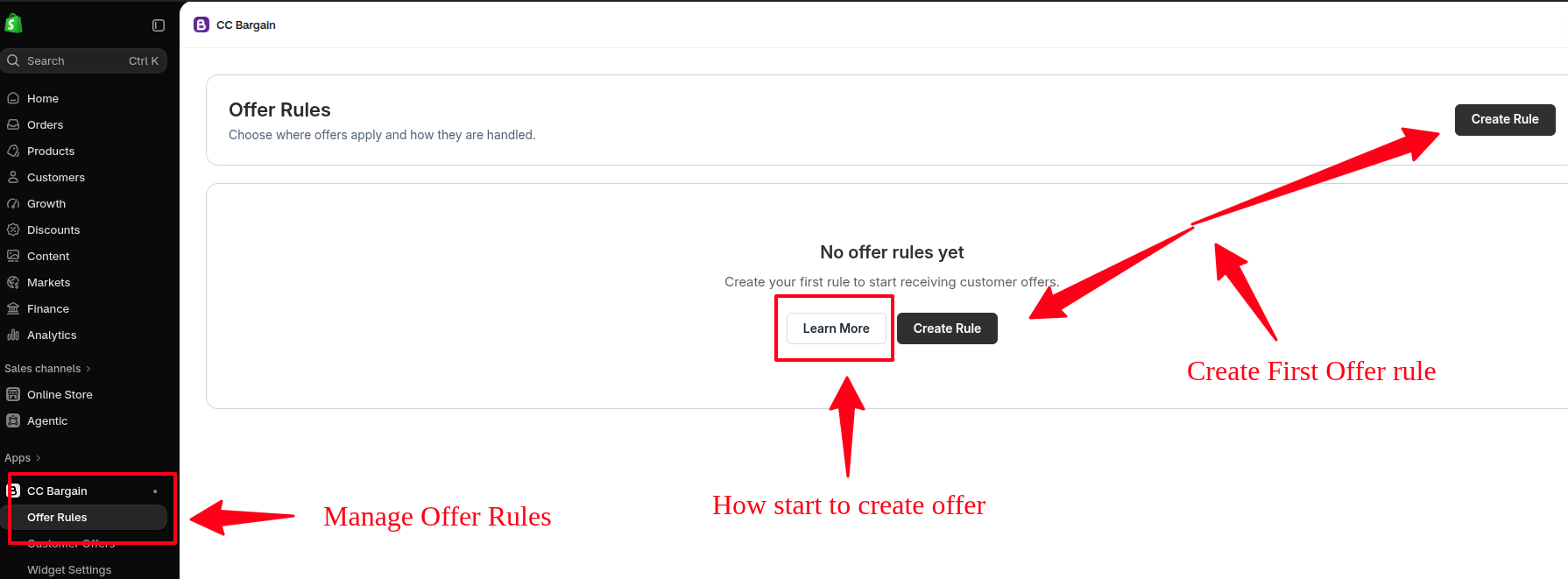
Open Offer Rules Page & Create Rule
First, open the Offer Rules page. Manage all your existing offers from this central dashboard and click "Create Rule" to establish your first offer rule.
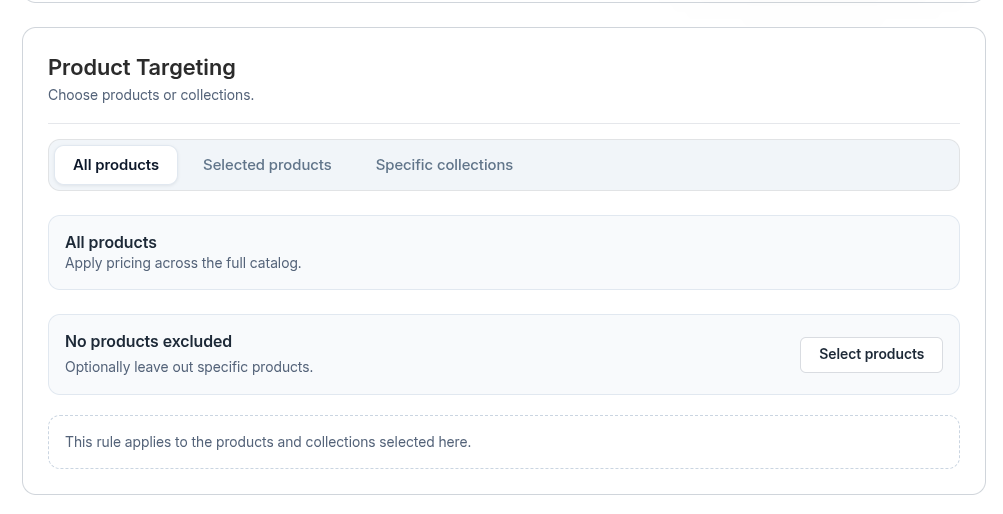
Product Targeting
Select whether the rule applies to All Products, specific Products, or an entire Collection. You can also specifically Include or Exclude products.
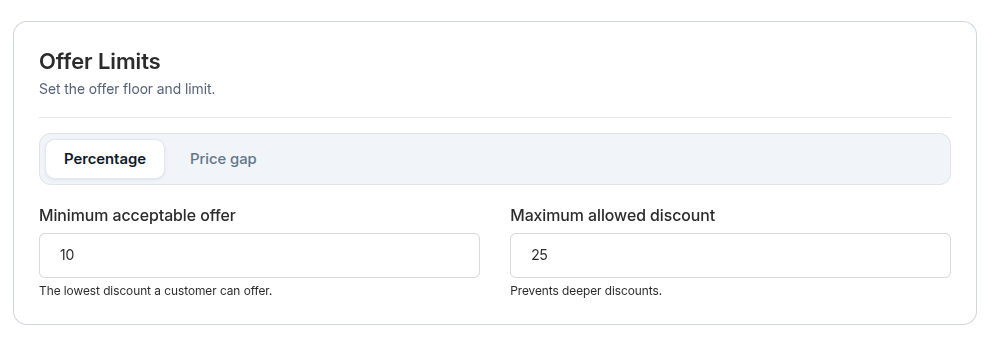
Offer Limits
Set your minimum and maximum acceptable offer margins. You can base this on a Percentage or a Price Gap.
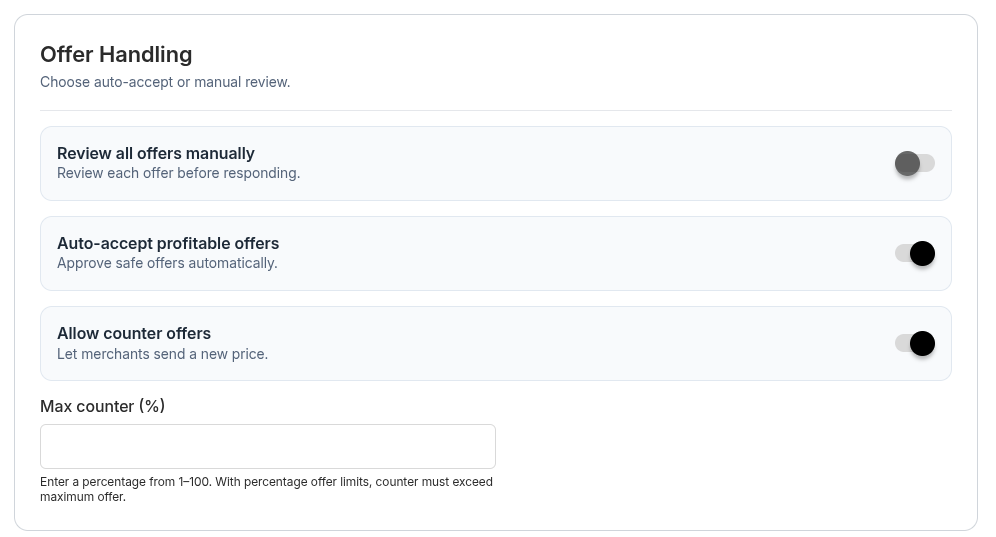
Offer Handling
Choose how incoming offers are processed and negotiated with the customer.
-
Manual review: Admin can manually review, manage, accept, and counter offers.
- Counter Offer Example: On a $100 product, if a customer offers $70, the admin can manually counter offer with $85.
-
Auto Accept: If the offer is within your limits range, it auto accepts. You can also set a counter offer limit to automatically negotiate when a customer requests more discount.
- Counter Offer Example: If your lowest acceptable limit is $80, and a customer offers $70, the app will automatically counter offer with $80.
Conditions
Set up any extra boundaries and conditions for when the offer is considered valid.
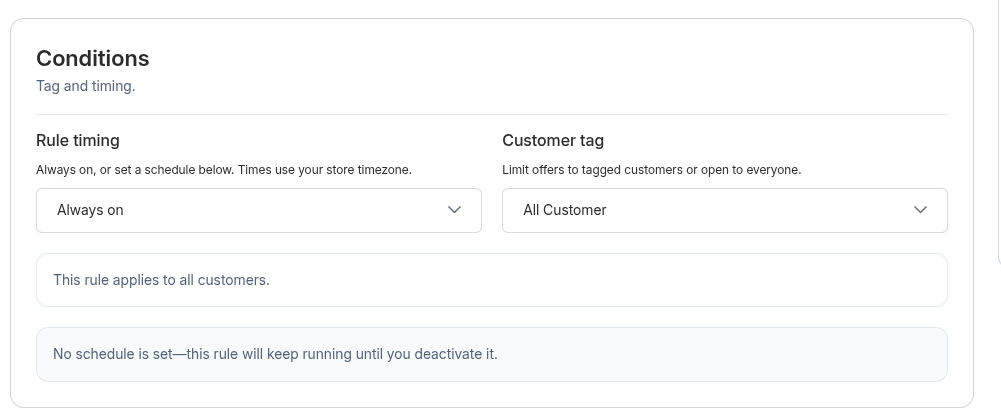
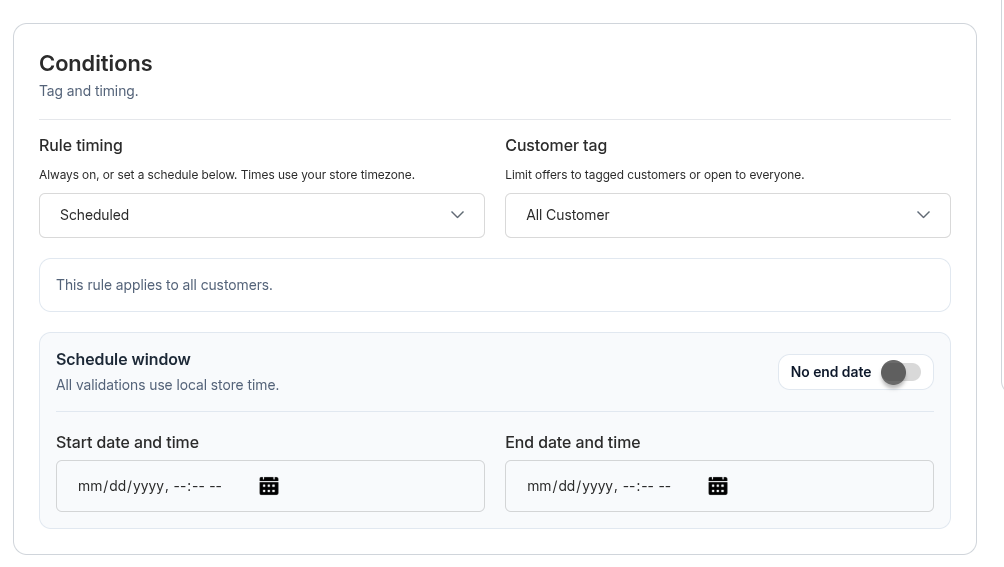
Schedule Rule & Customer Target
Schedule your rule to be Always On, or set a Start Date with or without an End Date. You can also restrict the rule to only apply to specific customer tags (e.g., VIPs).
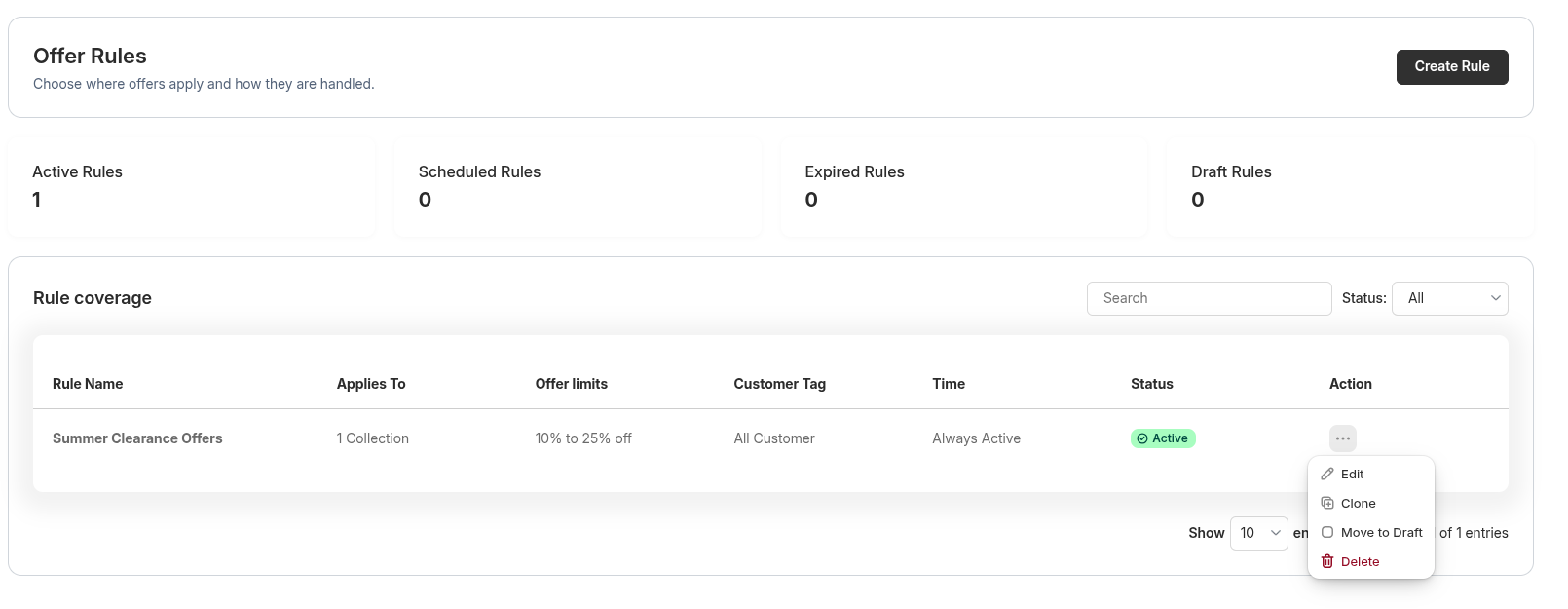
View Offer
View offer analytics, manage, or edit the offer. You can also clone the offer to easily create a new one with some condition changes in the rules.
5. Shopify Customer Tags
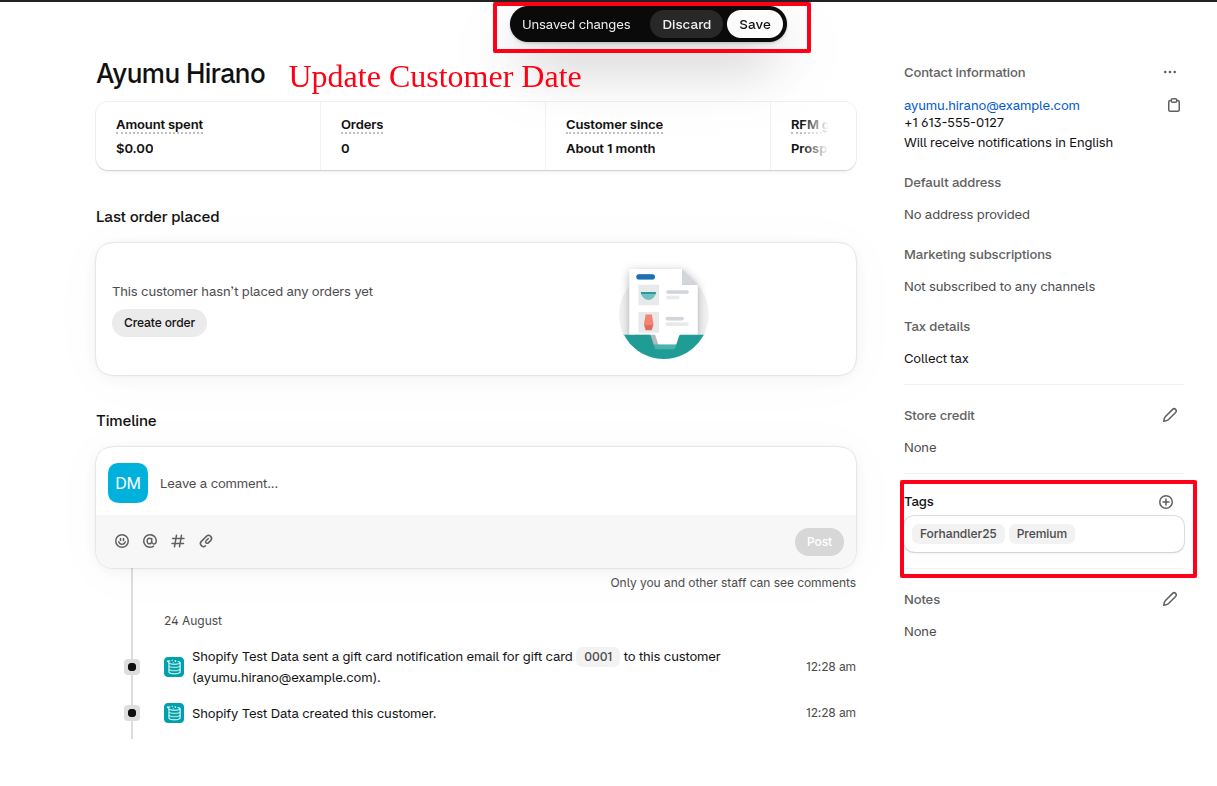
Learn how to add custom tags to your customers directly within the Shopify Admin.
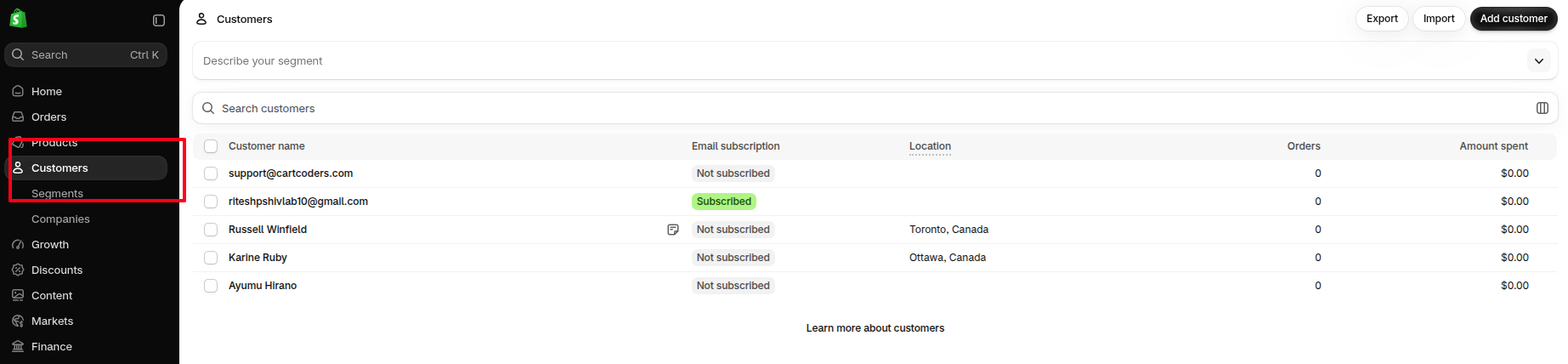
Open Customer
Navigate to the Customers section in your Shopify admin and open a customer profile.
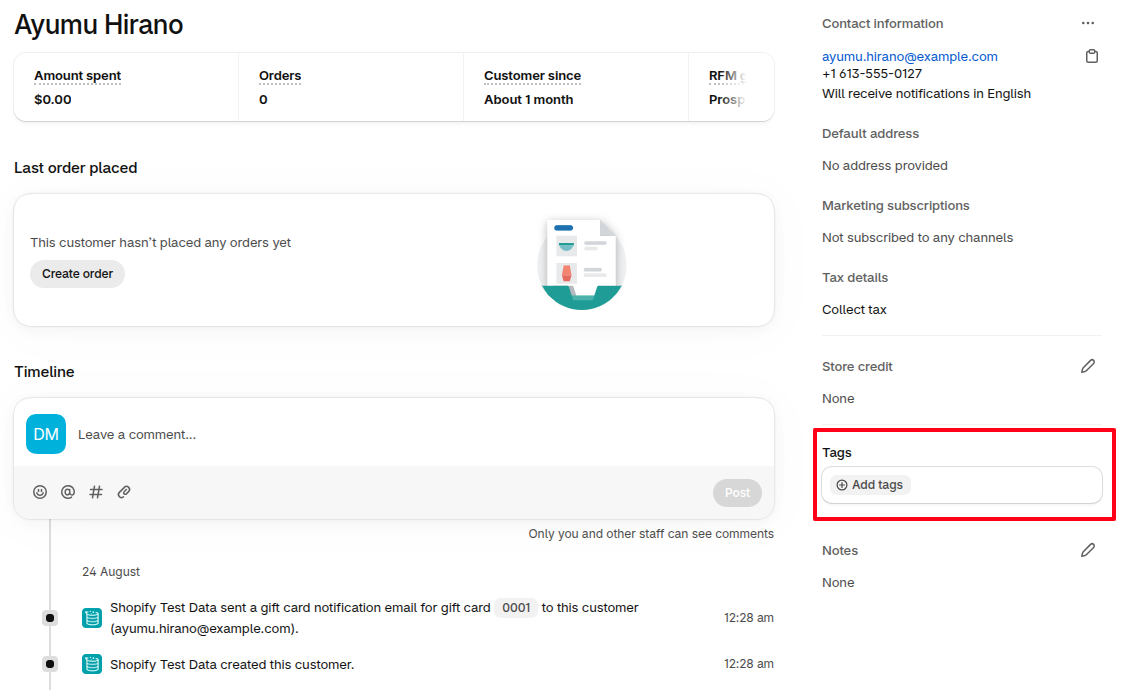
Locate Tags Section
On the right side of the customer profile, locate the Tags section where you can type in your desired tag.
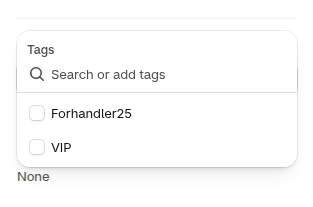
Assign Existing Tag
Click inside the Tags box to see a dropdown of your existing tags. Click any tag to assign it.
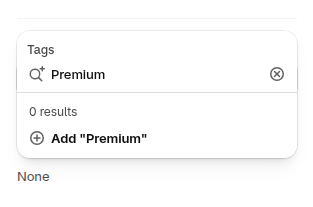
Create Custom Tag
To create a new one (like a "Premium" tag), simply type the word and click "Add" from the dropdown.
Update & Save Customer Data
Click save to ensure your new tags are applied to the customer.
6. Customer Offers
From the Customer Offers page, you can view and manage all incoming negotiations.
View & Manage Offers
View offer analytics, filter by status, and manage the complete negotiation lifecycle.
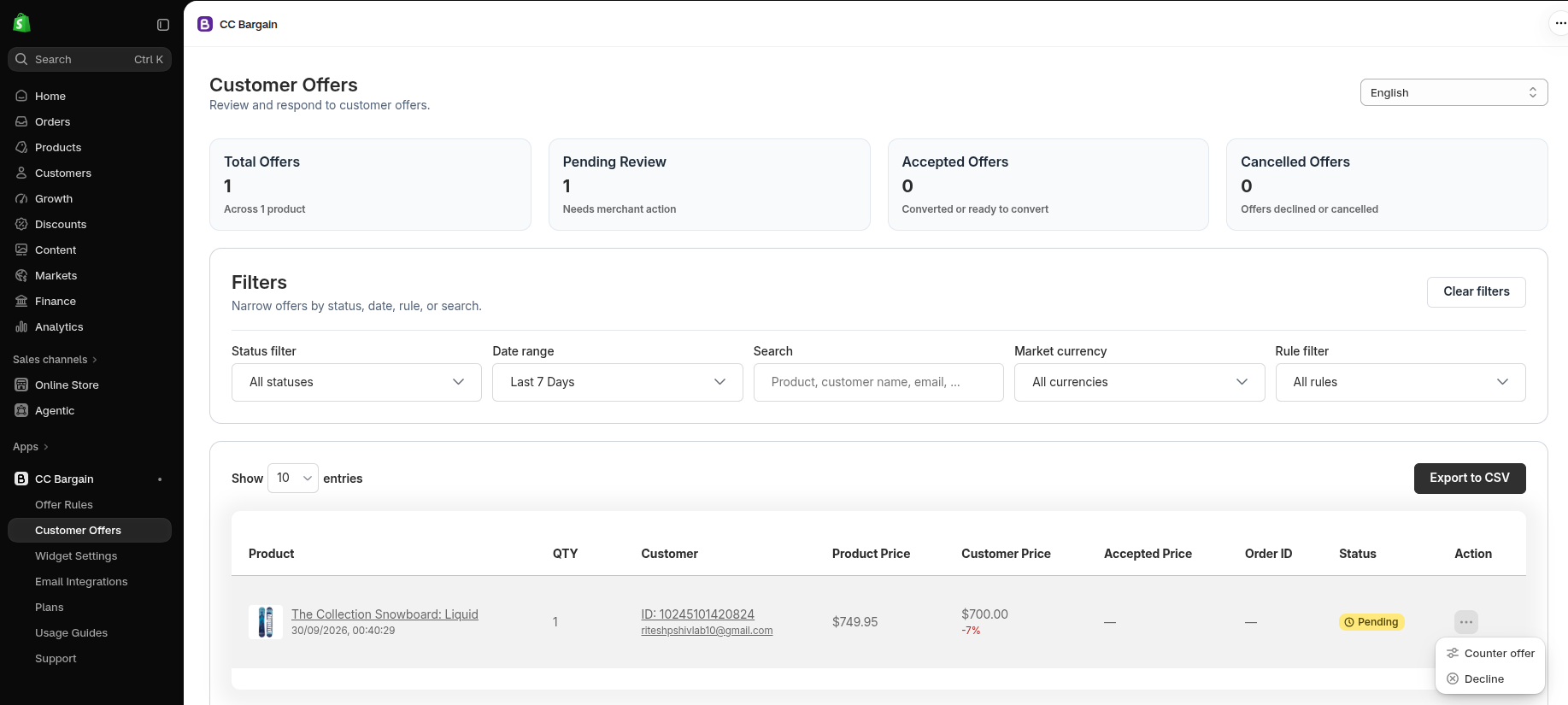
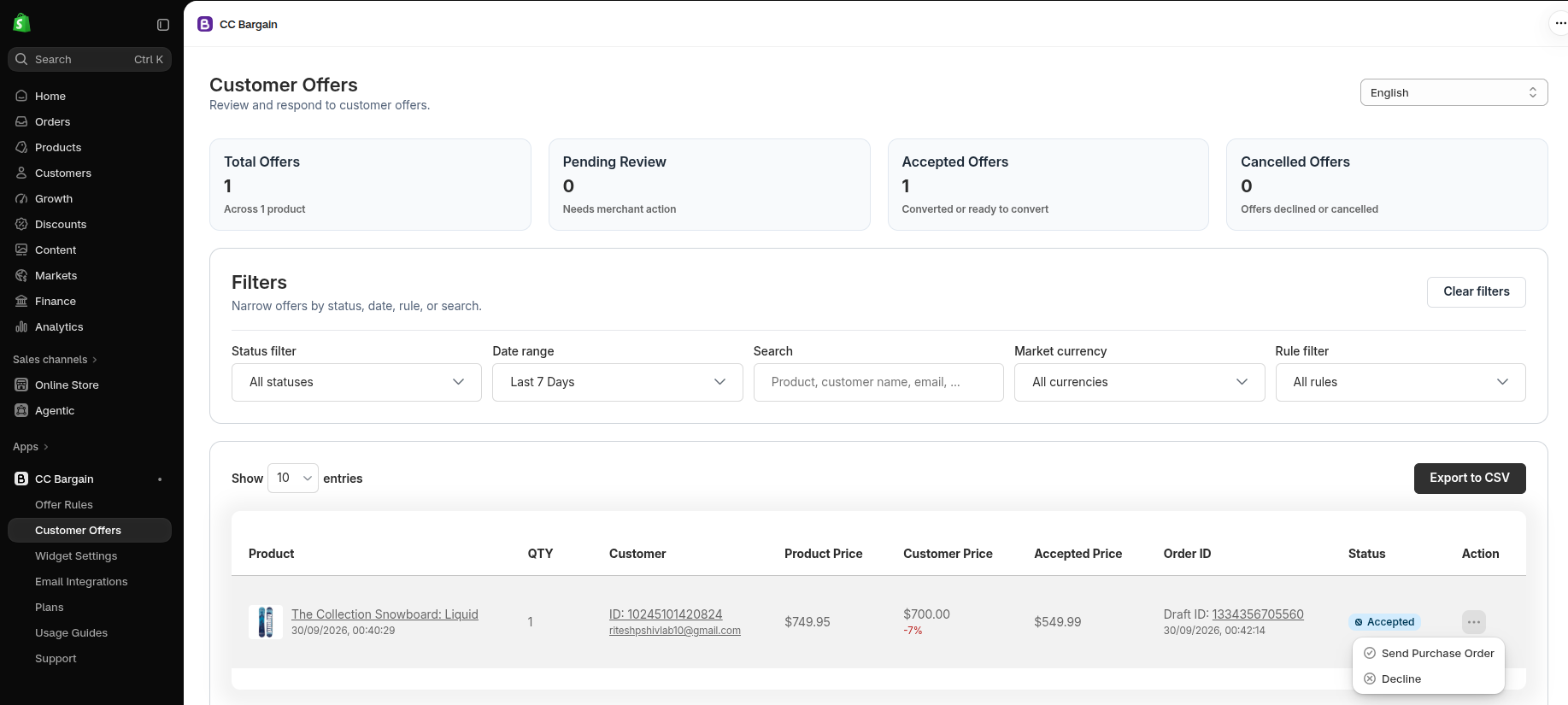
Offer Actions
Take action on incoming requests: Accept offers, Provide Counter offers, Send Purchase orders, and more.
7. Widget Settings
Ensure the bargaining button perfectly matches your storefront.
Open Widget Setting Page & Preview
Open the Widget Settings page to manage your button and preview changes.
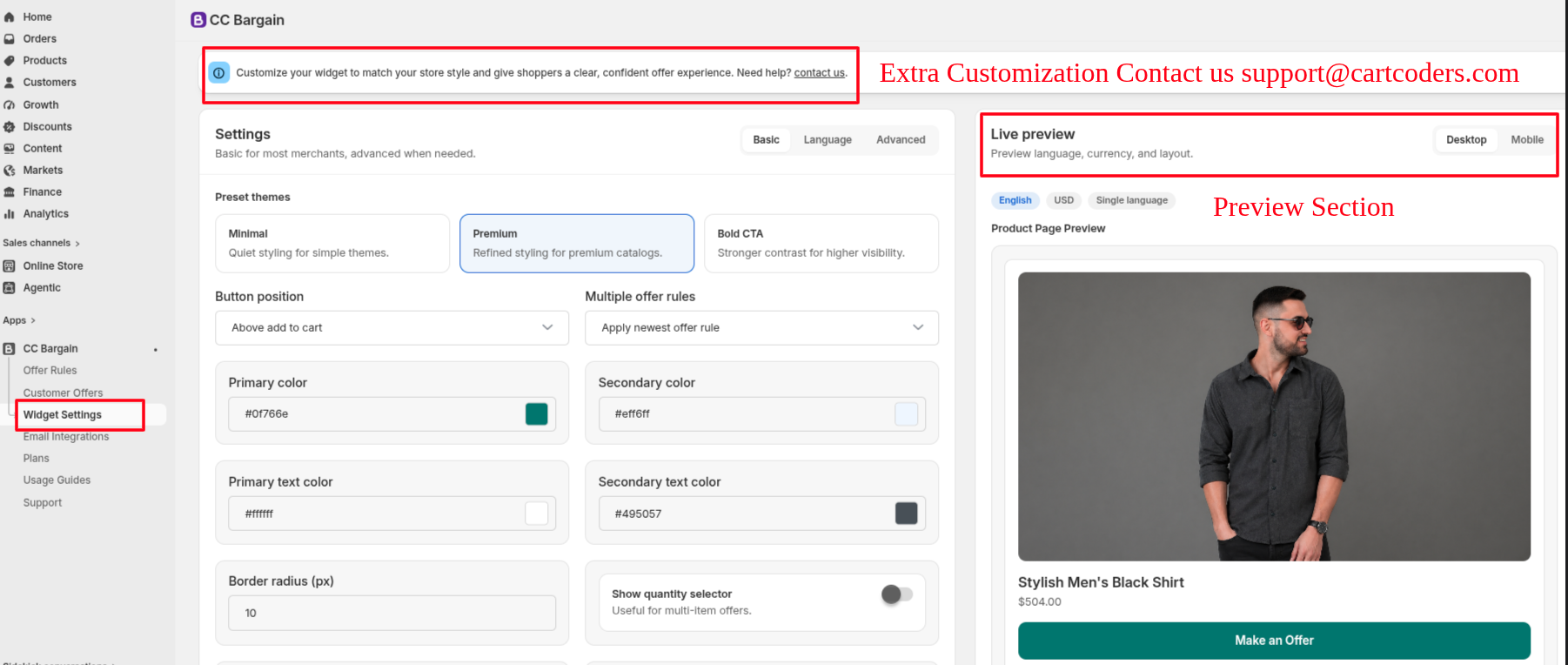
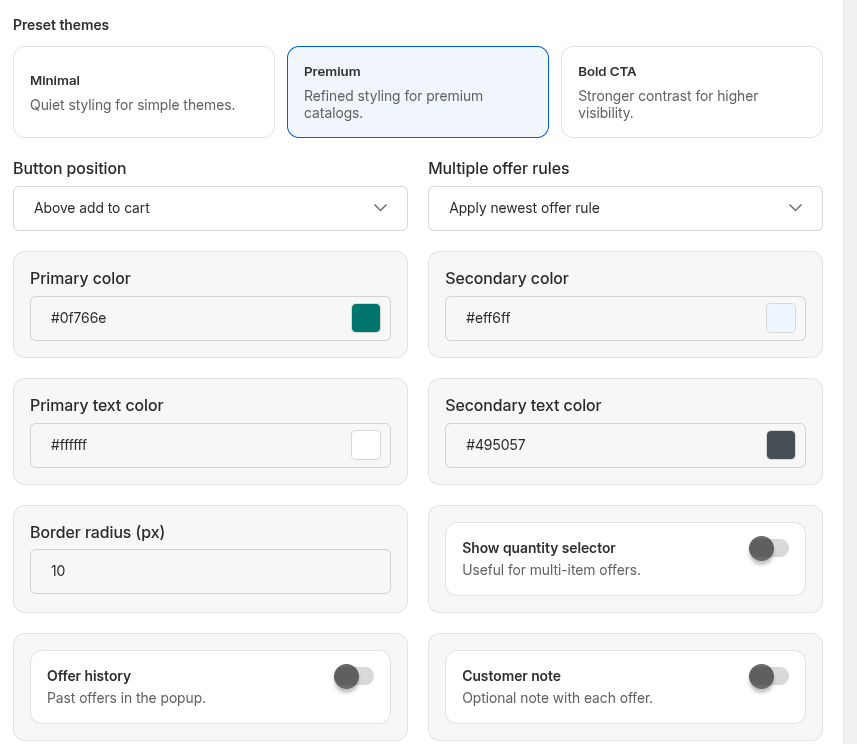
Customize According to Store Branding
Adjust button colors, text colors, fonts, and hover effects to fit your brand.
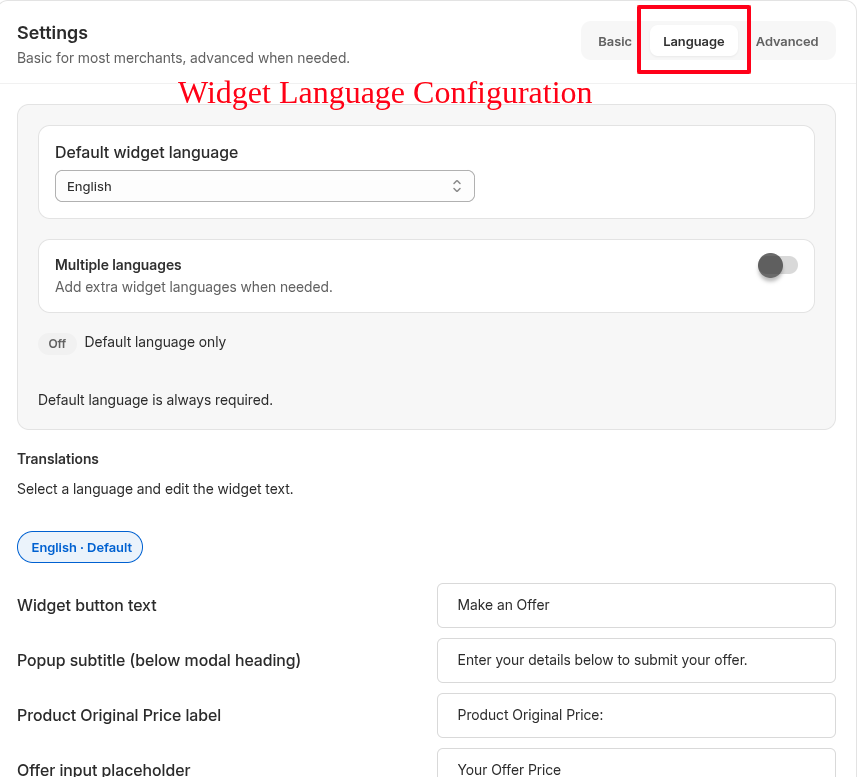
Widget Language & Multiple Languages
Configure the default language or select multi-language support for your widget.
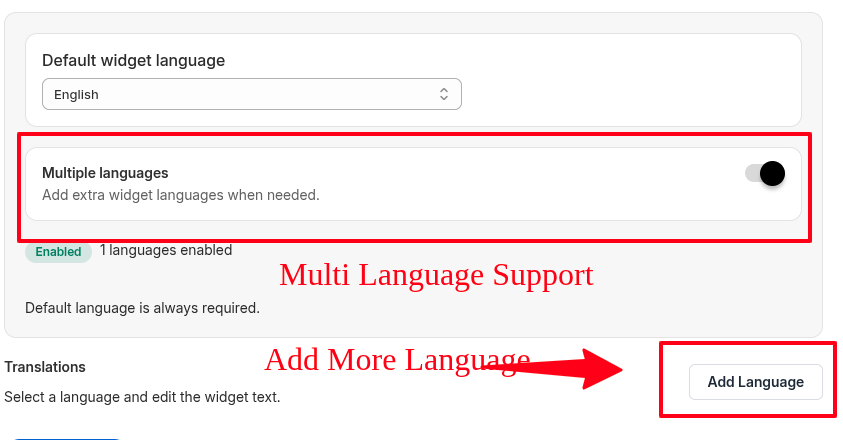
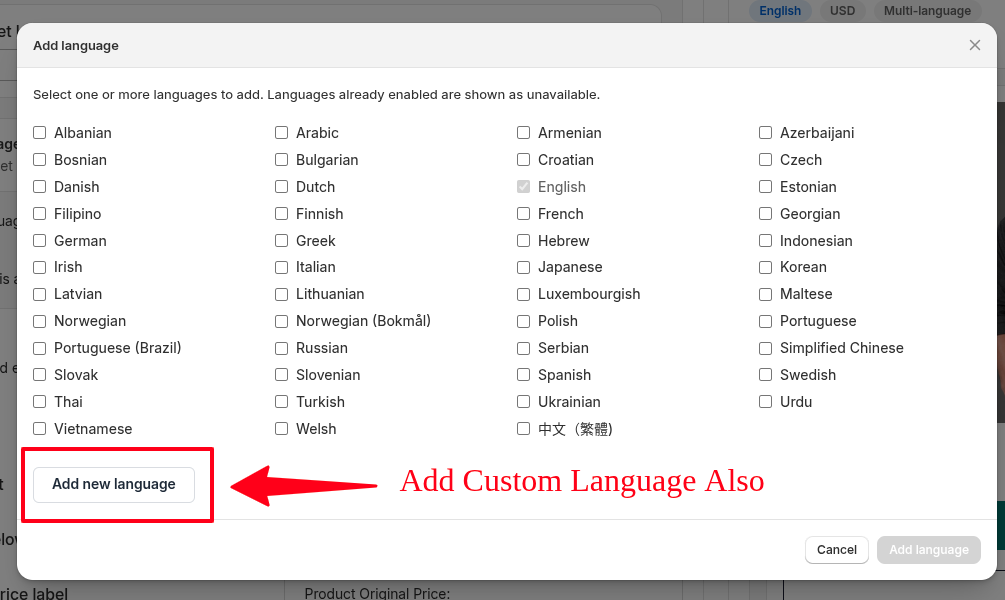
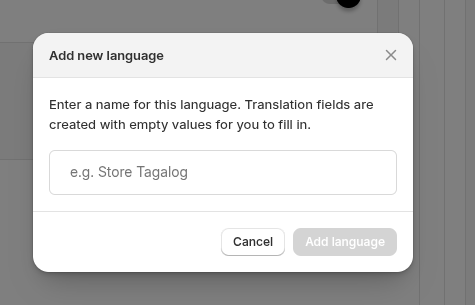
Add Custom Language
If your target language isn't available, you can easily add a custom language.
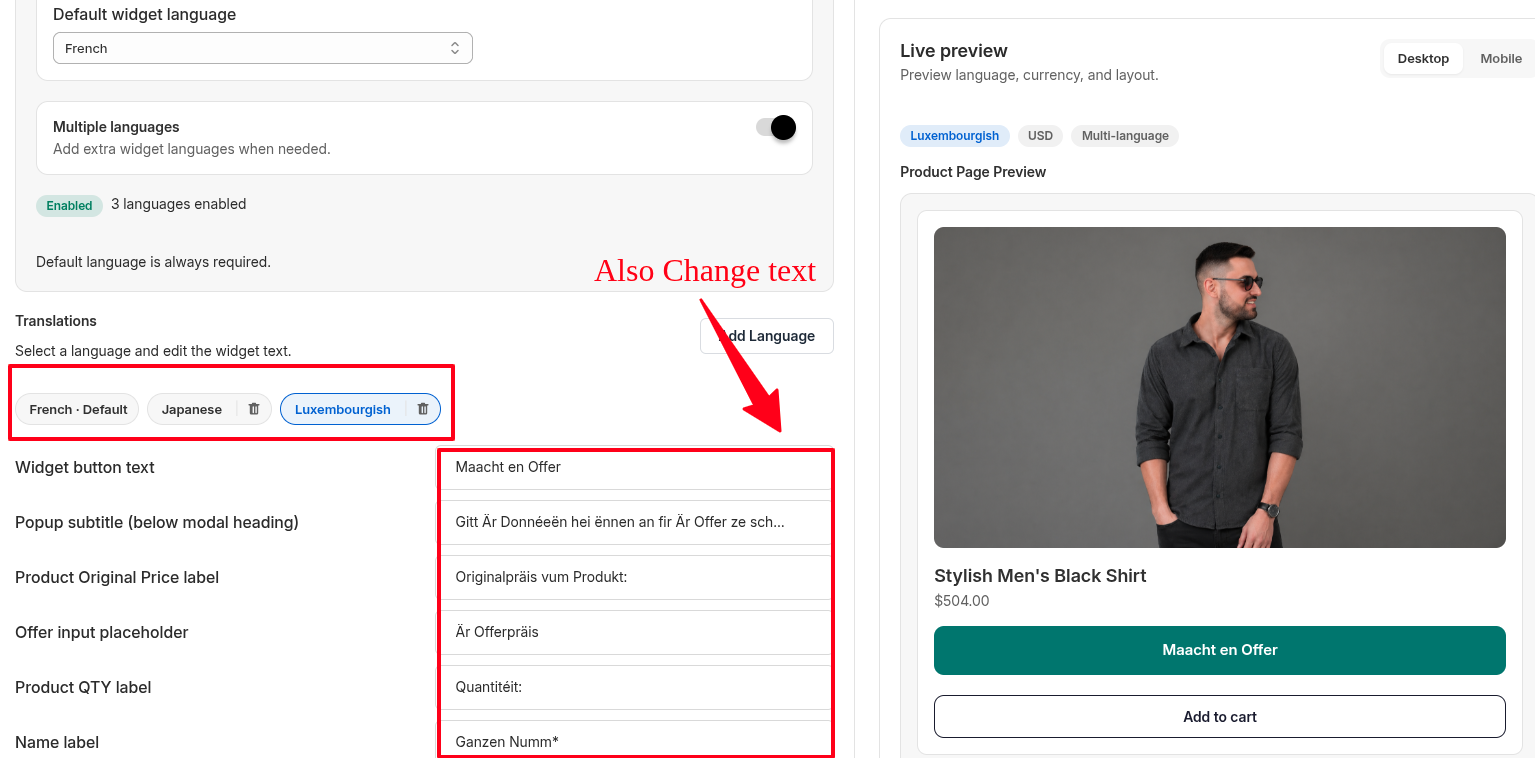
Change Language Translation
Translate or customize the specific text displayed on the widget to match your audience.
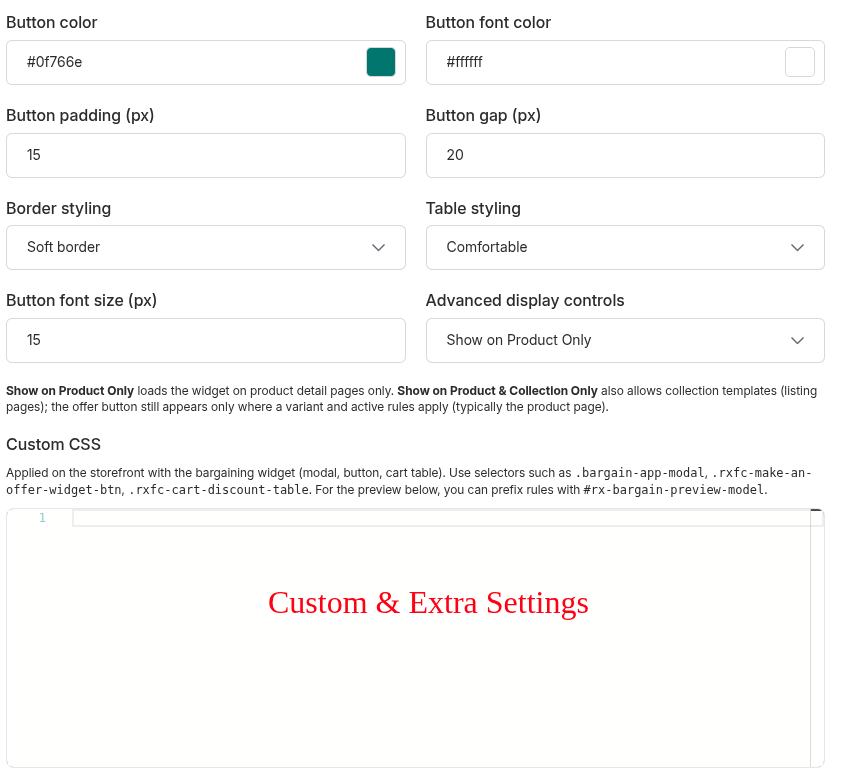
Custom & Extra Customization
Use advanced CSS and extra settings for pixel-perfect alignment with your theme.
8. Email Notifications
Keep your customers informed throughout the bargaining process.
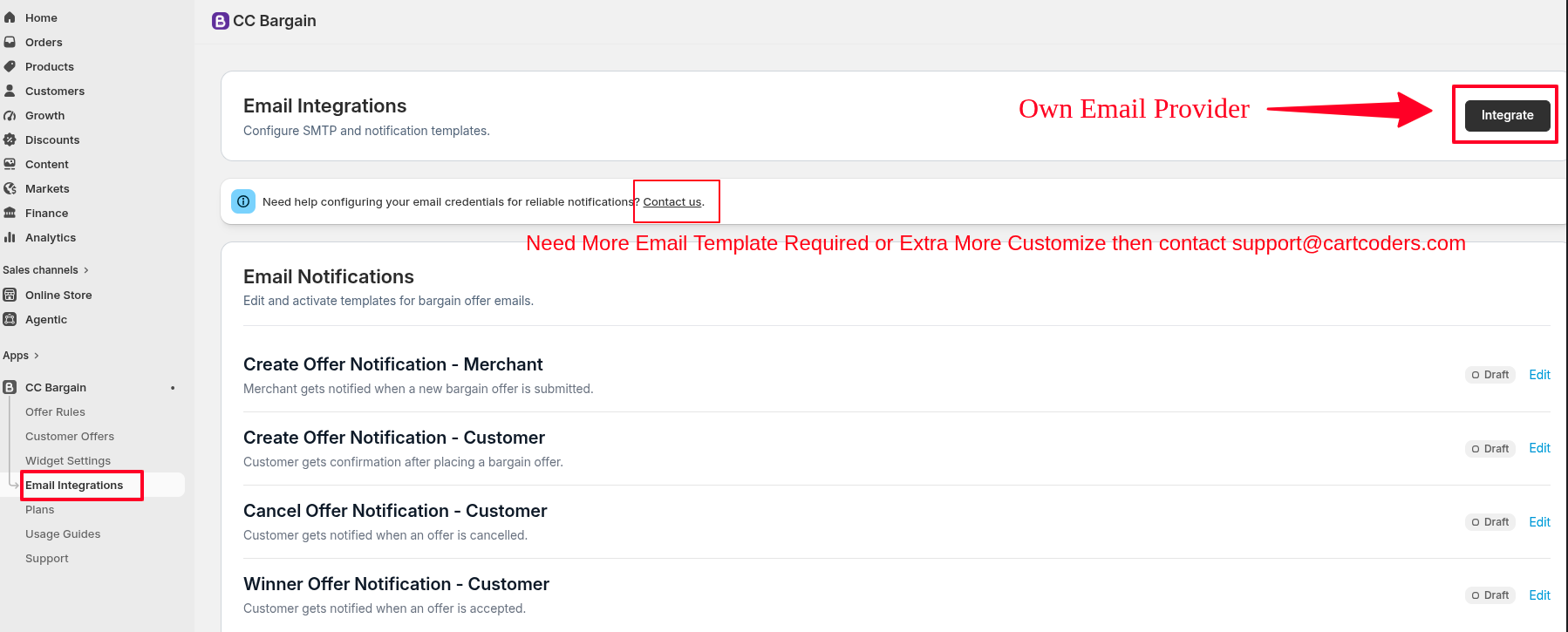
Email Integrations Welcome
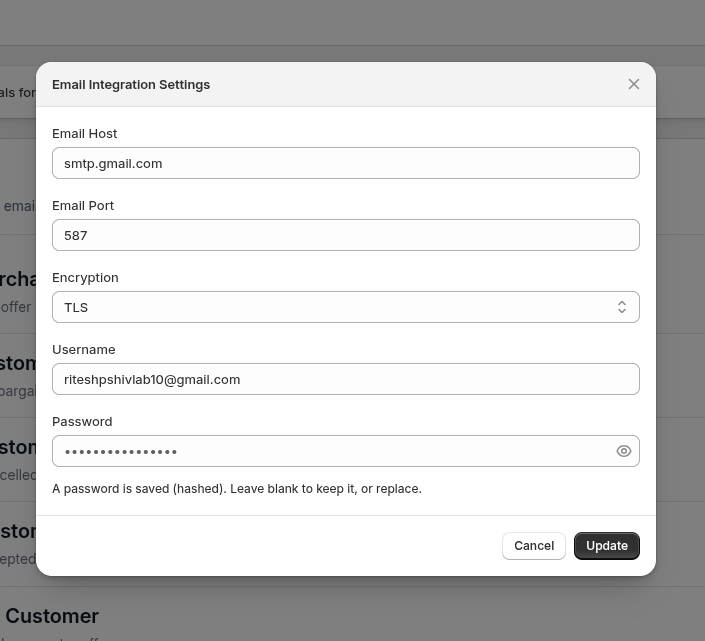
First, open the Email Integrations page from your dashboard to manage your settings.
Email Configuration
Set up your Email Configuration. You can use any standard SMTP provider like Gmail, Mailgun, etc.
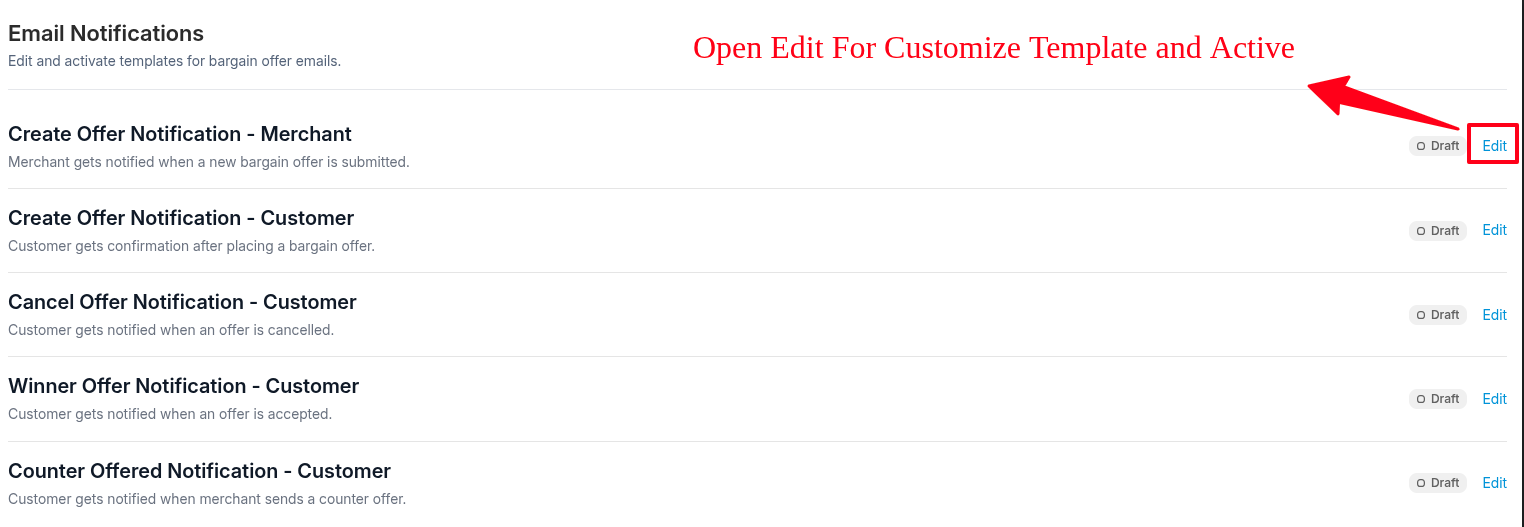
Edit Email Template
Now, edit your email templates for different customer notifications.
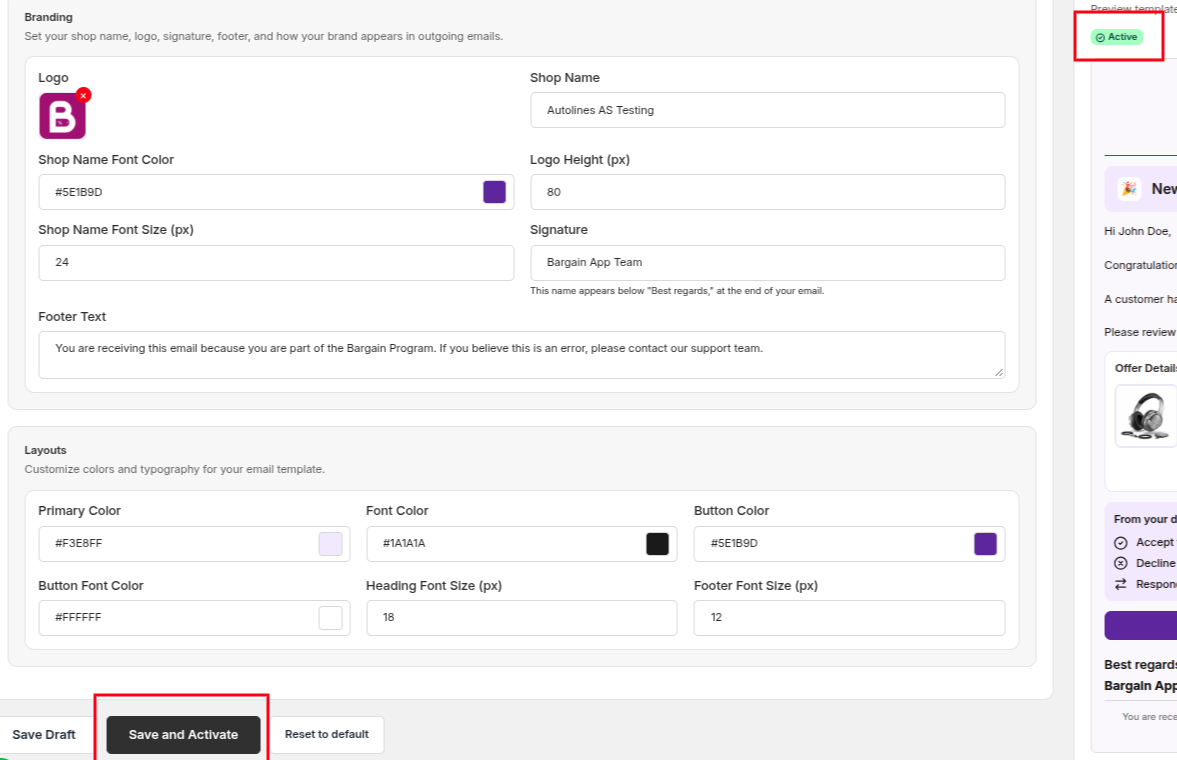
Customize Template
Customize the content, layout, and variables inside the editor to match your brand's voice.

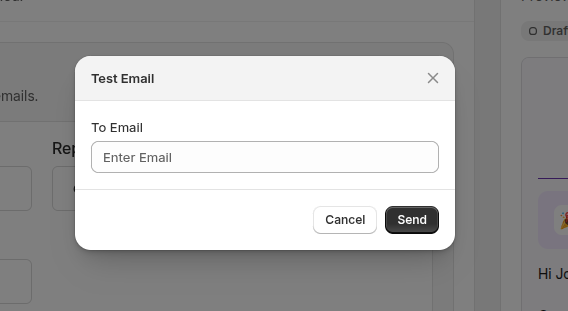
Test and Activate
Finally, send a test email to verify everything looks correct, then activate and save your configuration.
9. Recommended Launch Sequence
Launch checklist
Follow this order for a smooth rollout from install to live bargaining:
- Dashboard: Review the setup checklist and confirm your store connection.
- Plans: Confirm you are on the right plan for your business needs.
- Theme: Enable the app embed in your active theme.
- Rules: Create your first Offer Rule and apply it to a specific product or collection.
- Settings: Review your Widget Settings to ensure the button matches your store's branding.
- Emails: Enable and customize Email Notifications for your customers.
- Storefront test: Go to your storefront, navigate to the product you applied the rule to, and submit a test offer. Confirm it appears in your app Dashboard!
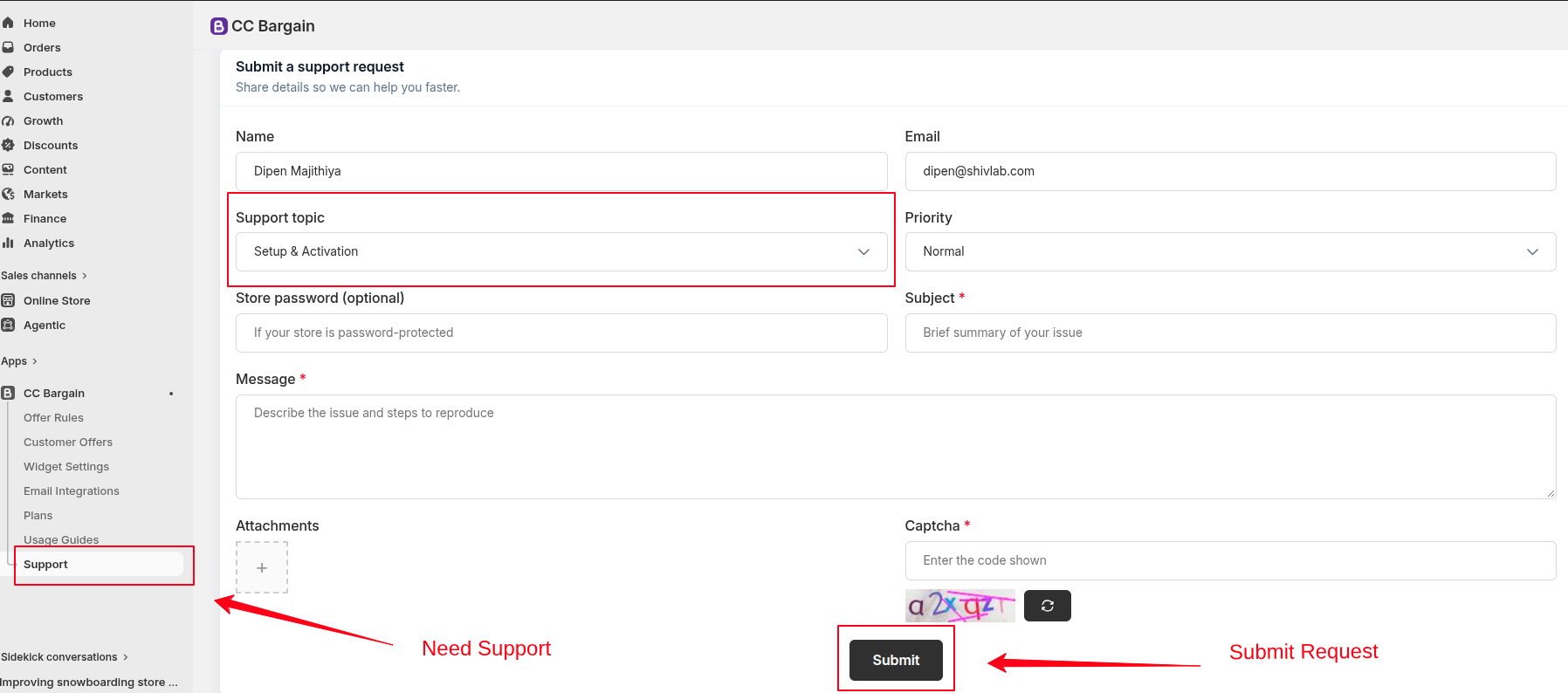
Get Setup, Migration, Billing, or Troubleshooting Support
If you need setup, migration, billing, or troubleshooting support beyond this guide, click the button below to reach out to our team. Please include your store URL and a clear description of the issue.